♠️ Poker Timer ← Back to Home
Blind Configuration Instructions

Setting Up Your Blind Schedule

The Poker Timer stores up to 3 games, each with up to 25 configurable rounds — blinds, antes, and breaks — with automatic level advancement. The schedule is set through a web page served by the device itself: no apps, no account, nothing to install.

Connect to the Device
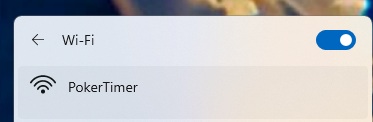
Connecting to the PokerTimer Wi-Fi network
STEP 1

Join the PokerTimer Wi-Fi

Put the timer in access-point mode (see Device Instructions, Step 5) and open your phone or laptop's Wi-Fi settings.

  • Enable Wi-Fi and wait for the network to appear.
  • Select the network named PokerTimer and connect.

Open the Configuration Page

Browsing to http://192.168.4.1
STEP 2

Browse to 192.168.4.1

Open any web browser (Chrome, Safari, Firefox) and type the device address into the address bar:

  • Go to http://192.168.4.1
  • The configuration page loads — the browser may show a "Not secure" warning. That's normal for a device page on your own network; it's not going out over the internet.

The Configuration Page

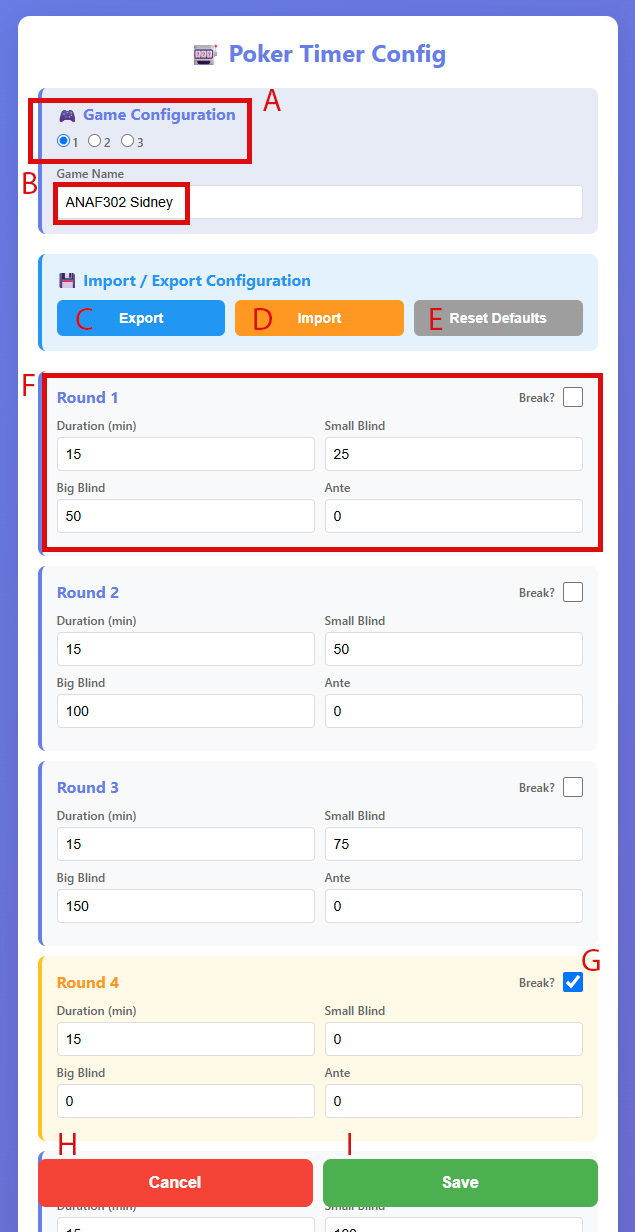
The page has everything you need to build and manage your blind schedule. The letters below match the markers on the screenshot. Each game supports up to 25 rounds — the screenshot shows the first four; scroll down the page to reach the rest.

Configuration page with labeled controls A through I

Configuration page — the letters match the descriptions below.

A

Select Game

The device stores 3 games. Pick slot 1, 2, or 3 to edit that game.

B

Game Name

Name the game. This is what appears on the power-on screen in Standalone and Master modes.

C

Export

Saves the schedule to a JSON file. Handy when you need more than 3 games, or want to copy the same schedule onto multiple devices.

D

Import

Loads a previously exported JSON file back into the device.

E

Reset

Restores the factory default settings for the selected game.

F

Round Settings

Enter the round Duration (min), Small Blind, Big Blind, and Ante for each round.

G

Break

Check this box to make a round a break instead of a play round.

H

Cancel

Floats at the bottom of the screen, always visible while you scroll through the rounds. Reboots the device without saving any changes.

I

Save

Floats at the bottom of the screen beside Cancel. Reboots the device with all changes saved.

Save & Test

STEP 3

Save Your Schedule

When you're happy with the rounds, tap Save. The device reboots with the new schedule.

  • Cancel (H) reboots without saving — anything you changed is discarded.
  • Save (I) reboots and applies the changes.
  • After the reboot, the game name appears on the Select Game screen in Standalone and Master modes.
  • Pick the game, tap START, and the timer levels the blinds automatically.

Need a Hand with the Hardware?

See the Device Instructions for powering on, changing modes, and putting the timer into access-point mode.

📱 Device Instructions

← Back to Home